
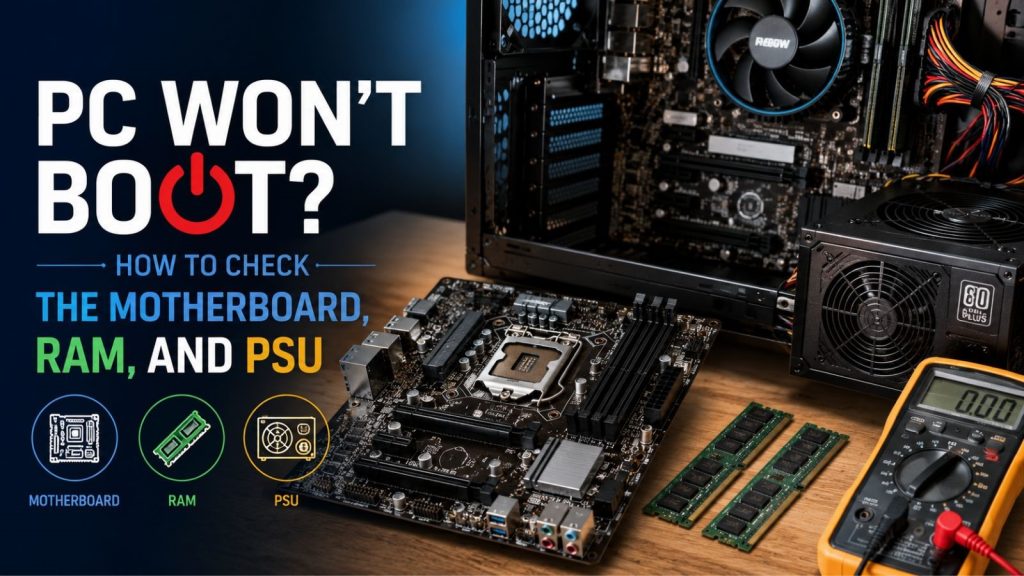
Pressing the power button on your computer and seeing no response at all is incredibly annoying. There is no sound, no lights, and no sign of whether your device is alright or not. The computer gives no starting beep, and no brand logo appears on the screen as it usually does when you turn on your smartphones or laptops. This lack of any activity leaves the user with a strong feeling of dread and frustration. Instead of losing hope, try to stay calm and find solutions. There are pretty much three of the things happening in this case. The issue is probably with the motherboard, the RAM, or the power supply unit. In the majority of cases, this kind of problem can be repaired rather than requiring a full replacement.
So how to figure out which of the three parts is responsible for this situation? The difficulty is that symptoms from these three parts usually appear very similar in the beginning. The key is to test them, one by one in the correct sequence, to identify the actual problem.
Which Part is Most Likely To Cause The Problem?
When a PC turns off abruptly during gaming, rendering, or heavy work, the power supply is usually the first suspect because it has to deliver stable power when demand rises. This means memory problems usually show up as freezing, crashing, BSODs, or random instability even when the machine is not under heavy stress. This means if fans spin, but the system does not start properly, or ports and devices behave a bit more strangely than usual, the motherboard becomes a more likely cause. What does that indicate? It means repair work relies on observing the symptom pattern and testing logically. Instead of randomly swapping parts.
What is The Role of Each Part?
Let’s get into the basic description of what each part does. The motherboard serves as the central circuit board inside the computer. It acts as the connection point that links all the other hardware components together. The motherboard manages how the CPU, RAM, storage drivers, external ports, BIOS/UEFI firmware, and power systems connect. It coordinates so that all the different parts of the computer can function. RAM functions as the computer’s temporary working memory. It holds data that the system needs right now for active tasks.
RAM allows the computer to run programs smoothly, switch between open applications, and store temporary information while the operating system is active. Without enough RAM, the system slows down or crashes. The power supply unit (PSU) converts the electricity from the wall outlet into the specific voltages needed by computer components. It supplies power to the entire system. The PSU delivers steady, reliable power to the motherboard, hard drives, CPU, graphics card, and all other parts inside the computer. Stable voltage is critical for proper functioning of computers.
How to Tell if RAM is Causing The Problem?
Problems with RAM appear unpredictably at first, but they tend to happen consistently when the computer is handling too many tasks. The issues are not constant, but they are usually triggered by demanding tasks because of overloading. The computer might start up normally, but then it will freeze and restart unexpectedly, or display blue screen errors when running programs or heavy tasks.
Common signs include:
- The computer shows the blue screen of death either during boot or when running big applications.
- The system suddenly freezes during normal activities like web browsing, playing games, or installing programs.
- The computer restarts by itself without any error message or obvious reason.
- The computer runs fine with one RAM stick installed but has problems when using a different stick.
- System errors stop occurring when you disable XMP or EXPO (memory overclocking profiles) in the BIOS. This suggests the RAM is unstable at higher speed.
- A helpful hint is that faulty RAM usually causes the computer to act erratically instead of being completely dead. The system still powers on but is unreliable.
How to test Motherboard Issues?
Visual Inspection: The first step is to look at the motherboard carefully with your eyes. This is a simple and safe way to begin an initial check.
Power Off: Turn off the computer completely and unplug the power cord. Then examine the motherboard for signs of damage such as burns, arcs, broken connectors, bulging capacitors, or anything that looks wrong.
CMOS Reset: Taking out the small round CMOS battery for a few minutes resets the BIOS to default settings. This can fix problems caused by corrupted settings rather than actual hardware damage.
Breadboarding: Breadboarding is a helpful technique to test the motherboard outside the computer case. It helps isolate the problem.
Take Motherboard Out: Remove the motherboard from the case and set it on a non-conductive surface like cardboard. Connect only the essential parts: CPU, one RAM stick, and power supply.
Good Motherboard Checks Include:
- Look closely at the motherboard for any physical signs of damage or burning.
- Reset the BIOS settings by clearing the CMOS.
- Listen for the beep codes from the motherboard speaker or check the debug lights on the board.
- Test the system using only the essential parts to isolate the issue.
- Replace the RAM and power supply with known working ones to test if they are the problem.
- Try booting the motherboard outside the case to check if the case is causing a short or grounding problem.
- Following these steps is important because people often blame the motherboard too quickly.
Signs The PSU is Causing Trouble
A failing power supply usually shows symptoms that are different from problems caused by a faulty motherboard or bad RAM.
The computer may shut off abruptly during demanding tasks like gaming, running benchmarks, or when the graphics card works harder.
Common Signs Include:
- The computer turns off instantly as if someone pulled the power cord from the wall. This sudden cutoff is a strong PSU clue.
- The system restarts by itself when running heavy applications or games.
- The computer starts normally in some instances and doesn’t turn on at all in others.
- The fan inside the power supply either doesn’t spin at all or makes unusual grinding or clicking sounds.
- The computer becomes unstable or crashes when the workload increases, such as during gaming or video editing.
- When you swap in a known good power supply. All the symptoms go away. This is strong evidence the original PSU was the problem.
- A power supply can appear to turn on normally but fail to provide steady power when the system is under heavy load.
- Just because the computer turns on does not mean the power supply is working correctly.
How To Test PSU Issues?
- The easiest starting point is to listen carefully when you turn on the computer. Pay attention to any unusual sounds from the power supply. If the fan inside the power supply does not spin at all, or if it makes strange grinding or clinking noises, this is a sign.
- A simple test is to see if the power supply turns on when you press the power button.
- Just because the PSU turns on does not mean it is working properly. Many failing units can power on but cannot handle load.
A Better Test Path Is:
- See if the computer only turns off when running demanding tasks like games or video editing.
- Observe if the system crashes specifically during heavy use such as gaming or running performance tests.
- Install monitoring tools to check if the voltage from the PSU is fluctuating or unstable. Unstable voltage is a key indicator of PSU trouble.
- If possible, swap in a known working power supply to test the system. This is one of the most reliable ways to confirm the issue.
Compare how the computer behaves with the original PSU versus the replacement. If problems disappear with the new PSU, the old one was likely faulty. A sudden, complete shutdown during heavy load without freezing first is one of the strongest signs of a failing PSU.
Recommended Troubleshooting Order
Begin troubleshooting with the simplest checks that are also the most common causes. The very first step is to make sure the computer is receiving stable power from the outlet and power supply. This rules out basic power issues quickly. After power, test the RAM next because RAM problems are very common and relatively easy to test by swapping sticks. Only after checking power and RAM should you examine the motherboard. Motherboard problems can cause different symptoms that are harder to pinpoint.
A practical order looks like this:
- First, verify that the power outlet and cable are working properly. This is the simplest starting point.
- Next, test the power supply to see if it turns on and handles load properly.
- Test each RAM stick one at a time to see if one is causing the problem.
- Turn off memory overclocking profiles (XMP or EXPO) in the BIOS to check if they are causing instability.
- Clear the BIOS settings by resetting the CMOS to rule out a corrupted configuration.
- Test the motherboard using only the essential components to isolate the issues.
- If necessary, take the motherboard out of the case and test it on a non-conductive surface (breadboarding) to rule out case-related shorts.
- Following this order saves time because each test builds on the previous one and gives clear results.
- Replacing the motherboard too early is a common mistake that can cost money when the real issue is the power supply or RAM.
When to Get Professional Help?
It is usually best to get professional help if the computer refuses to turn on at all, if you see physical damage on the motherboard, or if swapping basic parts like RAM and PSU does not fix the issue. Professional repair is useful when the problem requires detailed testing of the motherboard circuitry rather than just swapping components. A skilled technician can accurately determine if the problem is related to power delivery, RAM compatibility, motherboard circuits, or other parts involved in starting the computer. This kind of help is particularly valuable for business or work computers where every hour of downtime costs money.
Mobile Computer Repair For Troubleshooting
Mobile Computer Repair offers on-site help for common issues like computer booting, unstable RAM behaviour, power supply problems, and motherboard faults. The main benefit of professional diagnosis is that it prevents you from buying and installing the wrong parts. This saves money and gets your computer working again more quickly.
We offer:
- Desktop repair troubleshooting
- RAM modules and guide you on replacement guidance if needed; PSU-related shutdown diagnosis
- Motherboard inspection and boot failure checks
- Laptop repair support when board-level or memory-related issues appear
- IT support for businesses where computer downtime is costly
For customers, that means the problem is checked in the right order instead of being handled with trial and error.
Are you facing laptop-related issues? We offer business IT support with practical on-site solutions. Get mobile computer repair and maintenance in Los Angeles for laptops, desktops, business systems, virus removal, data recovery, and IT support. Contact Mobile Computer Repair now.
Frequently Asked Questions (FAQs)
Q.1. Could a problematic PSU damage other components like a motherboard or RAM?
Yes, since an inconsistent power supply can put stress on other components.
Q.2. Why does my computer shut down when I play games?
This usually indicates the PSU, since gaming requires considerably more power than other activities.
Q.3. Does one problematic RAM stick affect the computer boot-up process?
Yes, since one stick of RAM can prevent your PC from booting up and functioning properly.
Q.4. What does it mean if fans work but there’s no display?
This symptom can indicate a problem with a motherboard, RAM, graphics card, or power delivery system.
Q.5. Could resetting CMOS solve any motherboard problems?
A CMOS reset can solve only boot problems related to BIOS settings, not physical damage.
Q.6. Does the PSU fan always have to be working?
No, some PSUs run in semi-passive mode where the fan works only under certain conditions.
Q.7. Why does my PC freeze even after I reinstalled Windows?
Since freezing persists after the clean installation, this is likely a hardware issue.