
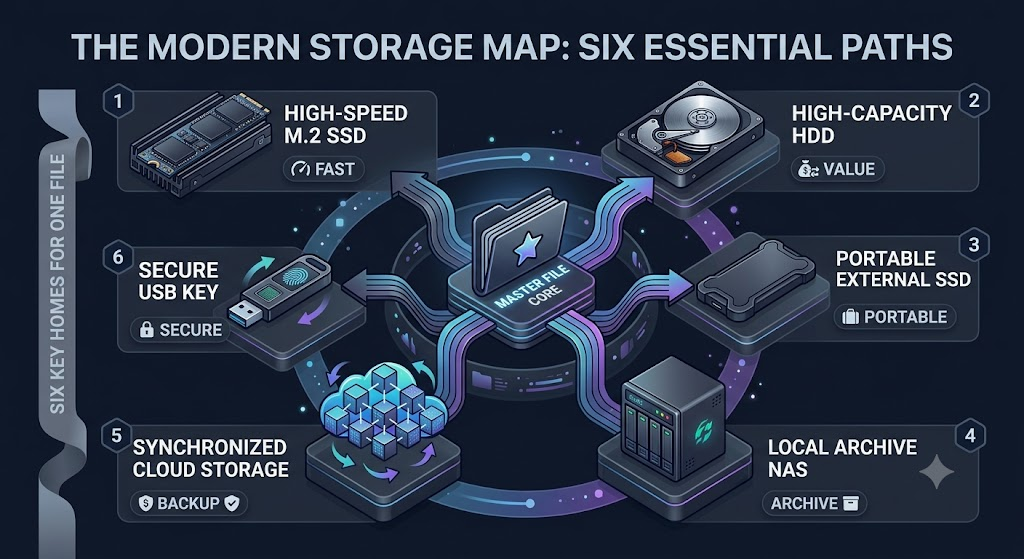
The honest answer to which storage option is best is that it completely depends on what kind of file you are trying to save, how often you need it, and whether you are working with a team or solo. And last but not least, how much you’d cry if it disappeared tomorrow. Even picking one storage seems like a mountain of work sometimes. At some point in your life, you must have experienced massive storage blunders that have taken away everything with it – memorable photos from your childhood, important documents from meetings, or something like that. If you ask us, honestly, it’s a terrible way to learn how serious file storage is, but here we are.
Storage choice can become weirdly confusing for people, especially more so when you’re not a techy person. There are so many options to choose from, so which one is right for you? And to make things even more complicated, there are so many tech-savvy terms that people don’t fully understand. Most people do not have a proper storage strategy to store their files; they just have files scattered all over the laptop. We know you might be one of those people who just keep saving files wherever the “Save As” window happens to take you.
People spend a lot of time wondering “Should I buy an SSD or an HDD?” “Is cloud storage better than an external drive?” This detailed blog post might be able to help you with some of your queries, if not all. We are here not to convince you that one storage device is better than another. Every storage option exists because it solves a different problem, and the mistake most people make is expecting one device to solve all of them.
Introducing Storage Family
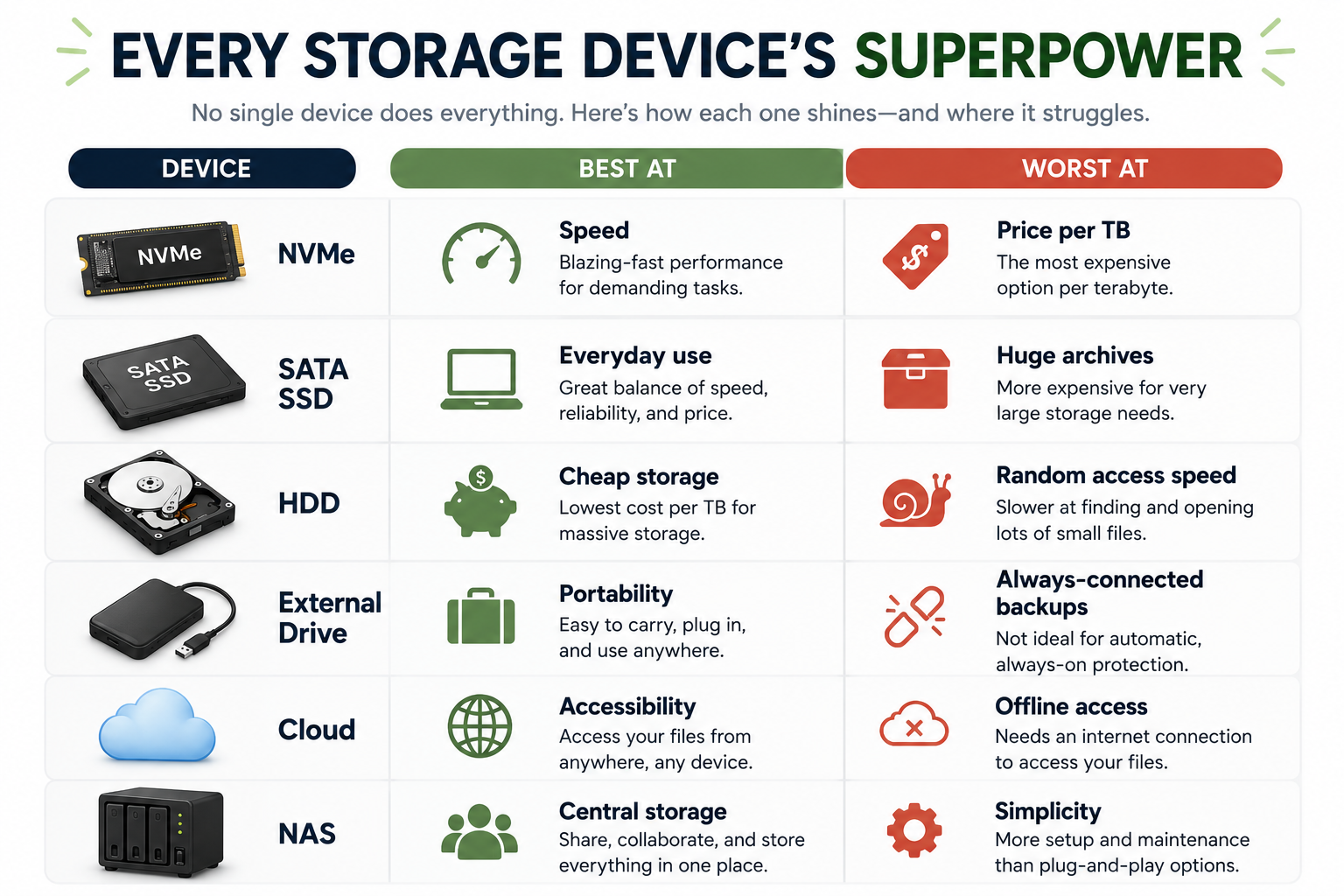
Each storage device is made for a different purpose, and when you understand these different roles, it will feel less complicated and confusing to understand which one works best for you. Let’s discuss a few of the most common storage options.
1. NVMe SSD
An NVMe (Non-Volatile Memory Express) SSD is a high-speed storage drive that helps your computer process faster because they handle the operating system, apps, and active files without dragging everything down. NVMe SSDs work directly with the CPU using the PCIe (Peripheral Component Interconnect Express) bus. It helps boot your laptop quickly, run applications faster, and keeps heavy work running smoothly without slowing down. If you edit videos, work on big photo folders, and use creative applications,s or simply want a smoother-running laptop, an NVMe SSD makes the most sense for daily use.
Best for:
- Operating System
- Main Applications
- Current Projects
- Games
- Large Working Files
- Creative Software Projects
2. SATA SSD
SATA SSDs are the standard 2.5-inch solid-state drives. They are used to replace traditional, mechanical hard drives to increase computer speed. NVMe usually gets more attention these days, but these are still practical and useful for many people. SATA SSDs are fast enough for everyday tasks, less expensive than many NVMe drives, and a big improvement compared to old traditional hard drives. For regular tasks, it’s more than sufficient. Activities like web browsing, schoolwork, office documents, streaming, email, and normal computer use all run well on a SATA SSD. It’s a good option for people who want good speed but do not want to pay more for performance. It’s also a good choice for older computers that need good performance without spending too much.
Best for:
- Photo and videos archives
- Old work files
- Backup copies
- Movies and media libraries
- Large folders that are rarely opened
- Cheap bulk storage
3. Hard Drives
Hard drives are still important because they are designed for a different job than SSDs. HDDs are not your typical fastest type of storage, and they were never supposed to be. Their main advantage is that they offer a lot of storage space at a lower cost. If you need to store a large number of files that you do not open often, a hard drive is still a good choice. This includes photo collections, old projects, downloaded movies or music, finished work, and backup files that you rarely open. This is the situation where hard drives are still the best option. HDDs are best when you need loads of storage space more than you need fast access, and when you want to keep costs low. This is why you still see HDDs used for home file storage, backup systems, and network-attached storage devices.
A hard drive is best for:
- Photos and videos archives
- Old work files
- Backup files
- Movies and media libraries
- Large folders that are rarely opened
- Cheap bulk storage
4. External Drives
External drives expand your computer’s storage space from the outside, connecting via a simple USB or Thunderbolt cable. Most people use them as the main place to keep all their files. They are actually better used as portable storage or for making backups. They are very useful when you need to transfer files between computers or carry data with you to keep a backup copy away from your main device. This is why they are like a suitcase for your data. They are not meant to be the permanent home for all your files. They are meant to help you move files, keep extra copies, and have your data available when you are away from your main computer.
External drives are especially used for:
- Backing up a laptop
- Moving files from one computer to another
- Keeping an offline copy of important data
- Storing completed projects
- Travel or temporary file transfer
External drives work well because they are easy to use and can be taken anywhere.
Amazing Stat
Backblaze now monitors over 341,000 hard drives.
One of the world’s largest publicly available drive reliability datasets now covers 341,000+ HDDs operating in real production environments.
5. Cloud storage
One of the most beneficial tools that is available at present. It allows access to files from various devices, easy sharing of folders, and hassle-free syncing of files. That definitely provides a benefit, specifically for individuals who use a laptop, desktop, tablet, and phone.
However, cloud storage should not be treated like magic. It provides access, sharing, syncing, and sometimes a version control history, but not necessarily a complete backup system. If a user removes a file from a synced folder, it’s also removed from the synced file list in the cloud. This is where many people get stumped.
Cloud storage is ideal for:
- Documents that you need on many devices
- Shared documents
- Photos that you want to have on display everywhere.
- Light collaboration
- Access is very easy from home, work, or travel.
It is one of the best tools that mankind has, but it’s best used in conjunction with larger storage systems – not as the primary location where a file exists.
6. NAS
NAS, which is pronounced as “nay-ess,” is just another expression for Network Attached Storage, although it might sound more technical. In simple terms, it’s a storage box to store data that can be accessed from a variety of devices on your network. This is great for families, home offices, creators and small teams looking for a centralized storage system.
A NAS really begins to make sense when a person is tired of asking where the file is, or multiple people doing backups want access to the same photos, project folders or media library. It’s less like scattering everything across random cloud accounts and more like organizing passing files around on USB drives.
A NAS can be used for:
- Shared family photos
- Home or small office teams.
- Copies of data made from several machines
- Large media libraries
- Creating eye-catching videos and graphics!
- Centralised file storage
In essence, it’s basically a private shared file hub. While not all members need one, it is a very real problem for those that do.
So What Is The Point Of All This?
The point is simple. Not all storage solutions need to accomplish all tasks. NVMe is for speed. SATA SSDs are normal drives to handle regular usage. HDDs are used for large amounts of memory, which is also quite expensive! For portable copies or for offline use, External drives are beneficial. Cloud Storage is used for access and sync. NAS is used for sharing storage in a home or small office.
That is the real storage map.
Storage Life Explained
Of course, one thinks of the sudden failure of a hard disk that leads to loss of data. Even though this does happen in reality, it does not happen all that much. Instead, the problem can occur because of accidental deletion, incorrect partitioning, ransomware encryption. Or the only backup copy happened to be on a single device or was damaged.
That is why it is crucial to know the difference in the ways different storage devices might cause problems. For example, SSDs and hard disks age differently, cloud services have their own problems, and an external hard disk was never designed as permanent storage. Of course, there is no guarantee that knowing all this will prevent you from losing any data. But it will help you make better decisions long before anything goes wrong
SSD Lifespan
The main misconception about SSDs is that they have a limited number of write cycles. This is kind of a true statement, but often gets taken out of context.
All SSDs will have a write endurance figure, typically called TBW (Terabytes Written). The number refers to the amount of data that can be written to the drive before the manufacturer anticipating the flash memory on the drive will no longer be of any use. Don’t worry, the drive won’t stop working once it reaches that number. It’s really just that the drive has surpassed the tipping point so it’s more likely to hit its tipping point.
Most SSDs don’t hit that mark for several years. Someone browsing the Web, creating office documents, streaming and watching videos, storing photos and sometimes downloading files, writes much less data than a professional video editor or software producer.
What affects an SSD’s lifespan?
- Heavy write-intensive workloads daily.
- Constantly filling the drive close to 100% capacity
- Failure to cool the drive
- Poor-quality flash in very low-cost drives.
- The problems in firmware, although this is quite rare nowadays
However, these values are unfortunately held responsible for a lot of stuff:
- Restarting your computer
- Installing Windows updates
- Normal web browsing
- Saving everyday documents
- Playing games
Modern SSDs are very capable of running through long periods of time and daily use. Sure, for certain people, replacing every 2 or 3 years due to concerns about write cycles may be important, but for most users it doesn’t need to be.
Why Are HDDs Still Useful?
People with even a glimmer of knowledge about tech forums, you’ve probably seen comments suggesting that hard drives are dead.The ground reality is very different. While SSDs are growing in popularity, the home, office, and large data centre market remains solid with the use of hard drives. Why? Because they offer something SSDs still struggle to match; very low cost per terabyte. When it comes to long-term family photo sessions, finished work projects, surveillance videos, or backup archives that are rarely used, then an HDD is still suitable.
Similarly, large cloud storage companies are still accepting enterprise hard drives for huge archives storing everything on SSDs would be more costly. If the data is being actively used, speed is important, but if the data has been archived, then the priorities are quite different. That does not mean the hard drive will last forever. There are mechanical components that inevitably wear out over time, bearings that age, motors that perish, and read/write heads that can become damaged. Unlike SSDs, which use no mechanical components, a hard drive is still a mechanical device.
The same goes to explain why hard drives dislike:
- Operating dropout window.
- Sudden power loss
- Excessive vibration
- High temperatures
- Physical shocks during transport
Next, be extra kind to them, and they will give you some years of great service.
The Storage Set Up That Makes Sense For Most Individuals
There is not one perfect setup for everyone, there are a number of suggestions that work for a variety of situations.
Designed specifically for school and everyday users.
For most users, enterprise storage and complicated networking are unnecessary.
Generally, a simple setup does the trick.
- Internal SSD for Windows, applications, and standard files.
- Access to documents or frequently-used folders in Cloud storage.
- This will be the external hard drive for regular storage and backup.
This ensures that daily work is being handled with speed and if the laptop malfunctions, then another copy will be provided.
A. For Families
The most prominent problem is likely to be photos and videos.
A system could look like this:
- A computer (LAPTOP or desktop) with a Solid State Drive (SSD) is required.
- Cloud storage of related photos and shared photos on mobile.
- A large external hard drive to back up the family backup.
If several family members are frequently using the same media library, a NAS might be worth a consideration.
B. For Photographers And Content Creators
When you need to be creative, you will need speed and capacity at the same time.
A common working process might be as follows:
- For current projects, use NVMe SSD editing
- External SSD for transporting active projects
- Large HDD or NAS for completed work
- Cloud storage for selected important projects
As the number of photo libraries or the amount of video footage escalates into the terabyte range, memory space inside becomes a problem.
C. For Home Offices And Remote Workers
Businesses are more concerned with business files than with size.
A sensible set-up would consist of:
- Store files, folders and documents locally on the internal SSD for everyday use.
- Collaborative cloud storage.
- Automatic external backups
- Security Manager – password vault and recovery.
- Regular backup verification
Although it may seem insignificant to lose one spreadsheet, when it’s the one containing several months’ work…
Should You Use a NAS?
Though NAS devices have grown in popularity over the past couple of years, every household doesn’t necessarily need them. If all your digital life is styled to fit in one laptop and your stuff is backed up infrequently, then getting a NAS may not be essential.
However, a NAS is very useful if:
- There is a need to access files by multiple users
- Multiple computers to back up
- You have a ton of photos or videos!
- You must work with huge media files.
- You wish to have some control over where your data resides.
NAS are more than just a hard drive box, as they can now also back up smartphones, sync with cloud storage, and transfer media around the house.
The important thing to remember is that RAID is not a backup.
While many NAS devices do employ RAID to safeguard against the failure of a drive, if your files get deleted, ransomware encrypts them, or you lose them in a blaze, RAID won’t do the trick.
Any NAS should have its own backup solution.
Ask Yourself These Questions Before Purchasing
While you’re debating whether to purchase additional storage, here are a few questions you should ask yourself. The first instinct you might have when it comes to storage options is to purchase another drive.
Sometimes that’s true.
Before spending money, ask yourself:
- AMI running out of storage space or organization?
- Do I need more speed or more capacity for faster storage?
- How many important files would go up in smoke if my computer failed today?
- Do all important things have multiple backups?
- When was the last time my backup was successful?
Those questions typically give you much more information about your storage facility than any benchmark will.
The Biggest Mistakes to Avoid
The purpose for the majority of storage issues does not have anything to do with purchasing the incorrect SSD! It happens because of small decisions that seemed harmless at the time but cause issues later.
Some of the most common errors to make:
- Having backups of important files on one and only one device
- When you assume that cloud sync and backup are the same, you’re wrong and potentially end up losing valuable time, money, and effort.
- Almost full drives with very little space left behind
- Not verifying backups to see if they have finished
- Disregard any abnormal noises from the drive or repeated SMART messages
- Using an already failed drive
- Gathering up years of files on random USB drives with no organization.
None of these problems requires expensive hardware to fix; they just require better habits.
Protect Your Files With Mobile Computer Repair Smarter Storage Setup
The best way to store your files is not necessarily the fastest drive or the most costly one. The best setup is the one that matches the way you use your computer or laptop. Whether you rely on an NVMe SSD, a traditional hard drive, cloud storage, a NAS, or a combination of all of them, the goal is the same: keeping your files safe.
Storage technology has never offered more choice, but having more options doesn’t mean you will end up making the right choice. Instead of searching for one perfect solution, focus on building a storage system that works for you. A little planning today can save you from losing years of photos, important documents, or business files later.
Whether you are upgrading to an SSD or organising years of files, Mobile Computer Repair can assist you with all of it. We can set up a reliable backup, recover important data, and help you build a storage setup that fits your criteria. From on-site computer repair to storage upgrades for homes and small businesses across Los Angeles, just hit us up. We keep your data organised, protected, and easy to recover when you need it the most.
Frequently Asked Questions (FAQs)
Q. 1. Will my SSD lose its contents if I leave it unplugged for many years?
Yes. SSDs keep information as electrical charges in NAND flash memory cells. In case an SSD remains without power for a very long time period (moreover, after lots of writes or high temperatures), those charges slowly disappear. SSDs are not made to be used as archive devices; thus, cold storage still uses HDDs or special archive media.
Q. 2. Is cloud storage a backup?
Maybe not. The thing is that cloud storage mostly works as a synchronisation service. If you delete a synchronised file, then this deletion will synchronise with your other devices too, unless some versions or backups are provided.
Q. 3. Why are HDDs used in big data centres despite SSDs being faster?
Speed is not always what we need. For big-scale archiving, backing up, and “cold” data, HDDs are significantly cheaper than SSDs per gigabyte of capacity. That is why cloud companies keep putting huge HDDs despite SSDs dominating in OSes and performance tasks.
Q. 4. Is it bad to fill an SSD up to 100%?
Yes. SSDs usually have higher performance if there is some space left for them to work. Many SSDs perform best with free space available for wear levelling, garbage collection, and background maintenance. Running nearly full can reduce sustained write performance.
Q. 5. Is NVMe always significantly faster than SATA SSDs?
Not necessarily. Large file transfer operations, video editing, VM creation, compiling software, and AI processes require NVMe SSDs more than web browsing, email, and Office files do.
Q. 6. How many backups should I make in reality?
The 3-2-1 backup strategy is the one that is generally recommended by professionals.
3 backups
2 media types
1 copy stored elsewhere
It is one of the most recommended approaches.
Q. 7. Should I disconnect an external drive once I am done using it?
Generally speaking, yes. Disconnecting drives used for backup is safer since it provides protection from ransomware, accidental deletion, electrical hazards, and other issues.
Q. 8. Does RAID equal backup?
No. RAID is a method of implementing redundancy of drives. It does not protect against accidental deletion, ransomware, fire damage, theft, file corruption, etc.