
According to the 2024 State of Backup and Recovery report from Veeam, 76% of organisations have experienced at least one ransomware attack. Not every deleted file needs an expensive professional recovery service, but what you do (or don’t do) in the first few minutes can make or break your chance of getting it back yourself. If you just deleted something like a document, Excel file, photo, project or business record, the smartest way is to slow down and follow a clear step-by-step process.
When you accidentally delete something, it’s not necessarily lost permanently. There’s often still a chance to get it back. In a lot of situations, you can still recover the file if you act quickly and correctly. Every time you keep using the computer/phone, install new apps, download files, or try random recovery tools, you risk overwriting the deleted data. Once it’s overwritten, it’s usually gone for good.
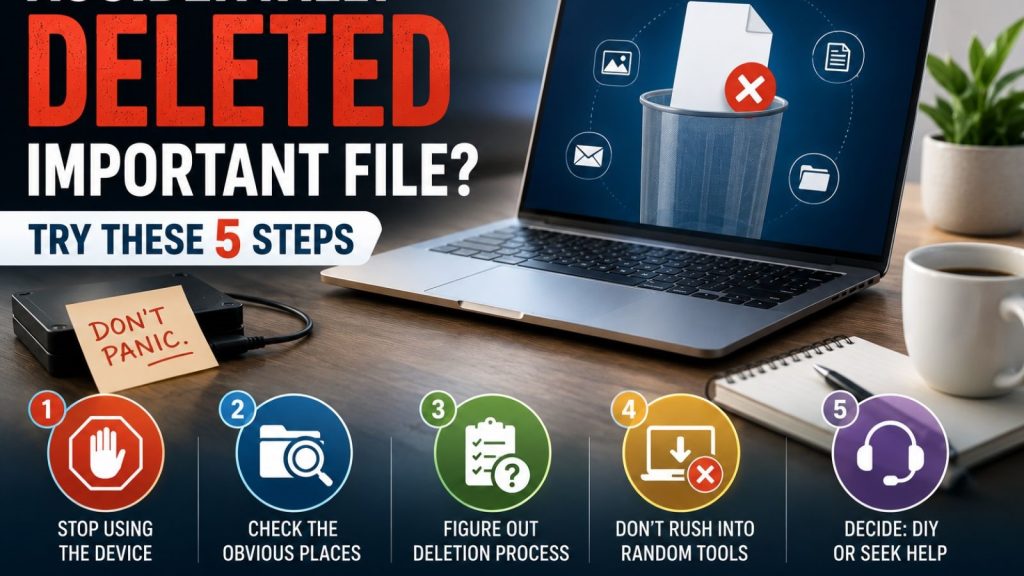
This blog post includes the first 5 most important things you should take right after deleting a file.
Thing #1: Stop Using the Device Right Away
This is the single most important action you can take after deleting a file. Every second you keep using the computer, you risk making the problem permanent. And these steps come before everything else, even before trying to recover software or calling an expert. When you delete a file, the operating system doesn’t always erase all the data; it just moves the address that points to where that data lives on the storage drive. Think of it like tearing the index card out of a library catalogue while the book itself sits still on the shelf. Until that shelf space gets reused for something, the “book” is still there and can be found again (data remains physically).
Any action you take on the device after deletion- having a document, opening an email, even just browsing the web, creates new temporary files that the system places wherever it finds empty spaces. If that space happens to be the exact spot where your deleted file was stored, the new data writes right over the old one. Once overwritten, the original file is gone forever, no matter what recovery tool you try. Every time you save a new file, install a program, download an email attachment, or even visit a website, your computer writes small bits of temporary data to the drive. Each of these writes could land on top of your deleted files’ former location. The more activity you do, the more chances you take; it’s like playing roulette with your important data, and the odds get worse with every click.
Thing #2: Check the Obvious Place First
Before you panic and start downloading recovery tools, take a deep breath and look in the most obvious spots where your file might still be sitting safely. Many people skip this step because they assume the file is completely gone, but usually it’s hiding in plain sight. This is the quickest and easiest way to solve the problem without any technical hassle.
Check:
- Recycle bin/trash
- Recent files list
- Cloud storage folders like OneDrive
- Google Drive, Dropbox, iCloud
- Version history or file history features
- Email attachments, chat apps, or shared folders where the file may already exist
- Downloads or temp folders if the file was recently moved or copied.
If you accidentally deleted a PDF report from your desktop in a moment of distraction. If that PDF was ever saved to OneDrive or Google Drive, the cloud service may have kept every previous version in its history log. You can open the cloud app, find the folder where that PDF lived, and restore the version from last week, completely bypassing the deletion. You might have set up a folder on your desktop that automatically backs up to an external drive, a network location, or a cloud service without even thinking about it. When you delete a document, that backup copy usually remains untouched, saved in another location. So check any sync or backup destinations you’ve configured in the past. If you delete a photo from your gallery, many photos automatically back up pictures to Google Photos, iCloud or a manufacturer’s cloud service. You can open that backup app or website and find your photos safe and sound even if it’s gone from the camera roll.
Thing #3: Figure Out Deletion Process
When trying to find a recovery method, also take a moment to figure out exactly how the file disappeared or got deleted in the first place. The wrong approach can waste time or even make things worse. So knowing how you lost the file helps you pick the right tool for the recovery process. So there are a few scenarios we need to check. The simple and basic scenario is you highlighted a file, pressed the Delete key, and it vanished from the folder view. In this case, the file almost certainly went straight to the Recycle Bin, and you can restore it from there. When you empty your recycle bin and the file’s address is removed, the actual file data often stays on the drive until something overwrites it. This situation is more serious than a simple delta, but recovery is still very possible with the right tools, as long as you stop using the device immediately. The key difference is that you now need recovery software rather than just clicking “restore”.
If you delete a file from a folder that syncs with OneDrive, Google Drive, or Dropbox, the cloud service usually moves it to its own trash folder for a set number of days, often 30 days. However, if you empty that cloud trash or the retention period expires, the file may be permanently removed from the cloud and any synced devices. The recovery process here depends on the cloud provider’s specific policies, so check their trash and version history first. Formatting a drive means telling the system to erase the entire file table and prepare the drive for new data, which makes all files look like they’re gone at once.
File Corruption Or Accidental Overwrite
However, in many cases, the actual data remains on the drive until new files are saved over it, so recovery is often possible using specialised scanning software. This is a bigger step than deleting a single file, and it usually requires more advanced tools or professional help. Sometimes a file doesn’t get deleted at all; it gets damaged (corrupted), so it won’t open, or you accidentally save a new version over the old one, replacing it completely.
Thing #4: Do Not Rush Into Random Recovery Tools
Recovering a file on your own can be a smart move in some situations, but in others it can permanently destroy your chances of getting the data back. The key is knowing which type of loss you’re dealing with, and whether you have the right setup to attempt it safely. When you download and install a recovery program onto the same drive where your deleted files still live, that installation process writes new files to the drive, and those new files could land right on top of the data you’re trying to save. It’s like trying to dig up buried treasure by dropping a heavy shovel directly on top of the spot where the treasure is hidden.
Each time you run a recovery scan, the software reads through the drive and may create temporary cache files or logs on that same drive. Running one scan after another increases the number of small write operations, which slowly eats away at the free space where your deleted file might be. After enough attempts, those repeated scans can overwrite the very data they’re trying to find, turning a recoverable file into a lost cause.
Some free tools are made poorly, have outdated systems, and are even loaded with hidden ads and unwanted extras that can clutter your system. Others might claim to recover files but only show you previews and then demand payment to actually restore them, wasting your time and giving you false hope.
Thing #5: Decide Whether to Recover It Yourself or Professionally
Making the right call at this stage can save you both time and money, but making a wrong one can cost you the file forever. If you try to recover the file by yourself, it may be a good decision if you know your way around computers, but when the file is needed on an urgent basis, you have to be very patient, careful and willing to follow instructions step by step and seek professional help. It also makes sense when you have a second computer or an external drive ready to use for installing recovery software safely. If the deleted file is something like an old family photo you’d like back, a personal document you can create, or a project that isn’t time sensitive, then DIY recovery is perfectly reasonable.
If your computer or drive powers on without errors, opens folders without freezing, and shows no signs of physical damage, then the problem is almost certainly software-related. If you deleted a file from a USB stick, external hard drive, or memory card and you didn’t format that drive afterwards, then you’re dealing with a straightforward case that most recovery tools can handle easily. Similarly, if your file was lost because you emptied the Recycle Bin, that’s a classic scenario where DIY software is very effective.
What Not to Do After Deleting Files
Sometimes knowing what not to do is just as valuable as knowing the right steps:
- Do not keep saving the files to the same drive
- Do not install random recovery apps one after another
- Do not reformat the drive again
- Do not assume “gone forever” and give up too early
- Do not keep opening and closing the device if it is unstable
Conclusion
So far, we learned what to do and what not to do when you accidentally lose your important files on your laptops or computers. Stop using the device, check the obvious recovery spots and avoid reckless recovery attempts. Things like these can help us get those files back.
Do you need help recovering an important file from your laptops or computers?
In LA? Mobile Computer Repair can help with data recovery, computer repair, and troubleshooting for homes and businesses. Apart from data recovery services, we offer computer repair and IT support services as well.
Whether you have accidentally deleted business documents, family photos, project files, or critical records, you have to make the right decisions quickly. If you deleted something important and are not sure what to do next, reach out to our team; we offer on-site computer repairs and maintenance services.
Frequently Asked Questions (FAQs)
Q.1. Is it possible to retrieve deleted files after emptying the Recycle Bin?
It is quite likely. When a file is deleted and then the recycle bin is cleared, the data could still be recoverable until other information starts replacing it on your device.
Q.2. For how long will the deleted file stay recoverable?
There is no definite timeframe, as it all depends on the activity level after the file has been deleted, among other factors.
Q.3. Are deleted files more difficult to retrieve from an SSD than from a regular disk?
It might be the case, as most solid-state drives use technologies like TRIM that make deleted data less likely to be recoverable.
Q.4. Is it safe to use file retrieval software for free?
In some cases, it might work out fine, but installing it without expertise can reduce the possibilities of successful file retrieval. If the data is business critical, you’d rather go to an expert.
Q.5. What should be done right after deleting an important file?
The best course of action would be to refrain from using the device too much and refrain from downloading anything until checking for the file elsewhere (Recycle Bin or versions, for example).