
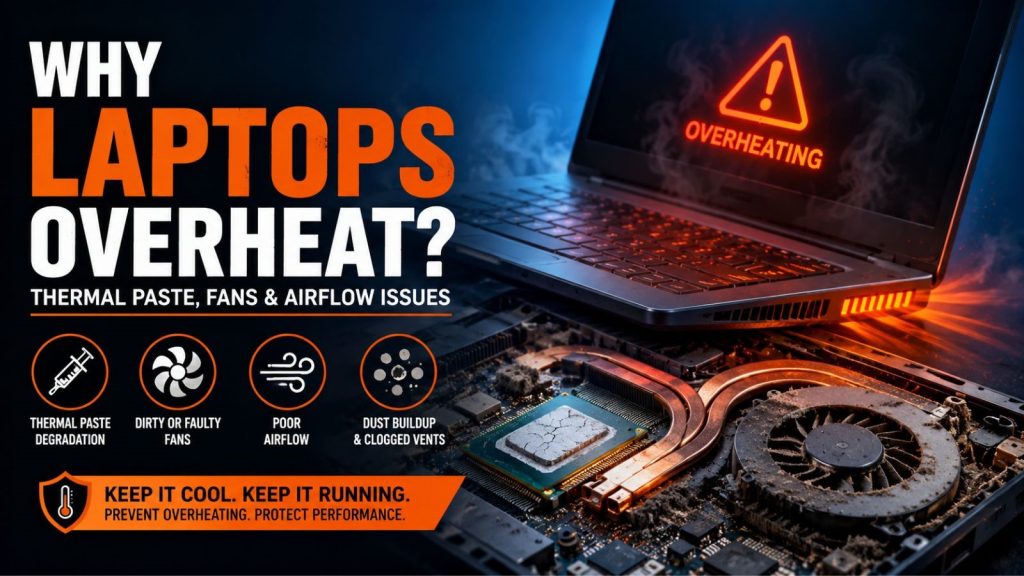
Laptops are small and compact devices, great for carrying around, but this design also traps heat inside very easily. Laptop overheating is a common issue that can trigger thermal throttling (make them slow, noisy and unstable), especially when dust or old thermal paste reduces cooling performance. In the worst-case scenarios, it can lead to permanent hardware damage as well. The CPU (Central Processing Unit) and GPU (Graphics Processing Unit) generate the most heat inside a laptop, and when this heat builds up, the laptop automatically slows down its performance to protect itself. The issue is that the demand for simple cooling accessories has also grown in recent years.
According to MarketResearch.Com, the global laptop cooling market has reached a value of USD 379.64 Million in 2024. It is expected to grow at a CAGR of 5.80% in the forecast period of 2025-2034, making it to reach the value of around USD 667.16 Million by 2034.

North America has the largest market, accounting for roughly 34% to over 40% of global revenue. And Europe holds the second largest share at over 30% of the market.
Read this blog post to learn about laptop overheating in depth and what preventive measures you can take to save your devices from malfunctioning.
How Does Laptop Heat Build Up?
Laptops generate heat mainly from the CPU (main processor), GPU (graphics processor), VRM (power delivery parts), and storage drives. This heat is supposed to travel through thermal paste to a heatsink and then get pushed out through the vents by fans. When any parts of this cooling chain (paste, heatsink, fans or vents) stop working well, the heat starts to build up. The laptop then automatically slows down its speed to protect the hardware from damage.
So you might have noticed your laptop works fine when you open a few normal browsing tabs. But as soon as you open highly demanding programs, the cooling system fails to take the heavier load. The cooling system works as a connected series of parts rather than one independent piece. Every system in the chain must function properly for the whole system to stay cool. In slim laptops, this problem persists even more because they have less room for airflow and less internal space to absorb heat spikes.
There are a few scenarios that can spike up the heat:
- CPU heat tends to rise because of browsing, updates and tasks running in the background.
- During gaming, video editing and rendering, the GPU heats up
- If there are shared cooling systems, then one hot component can affect another
- Dust buildup reduces airflow and traps heat inside the laptop.
How Thermal Paste Affects Laptop Temperature?
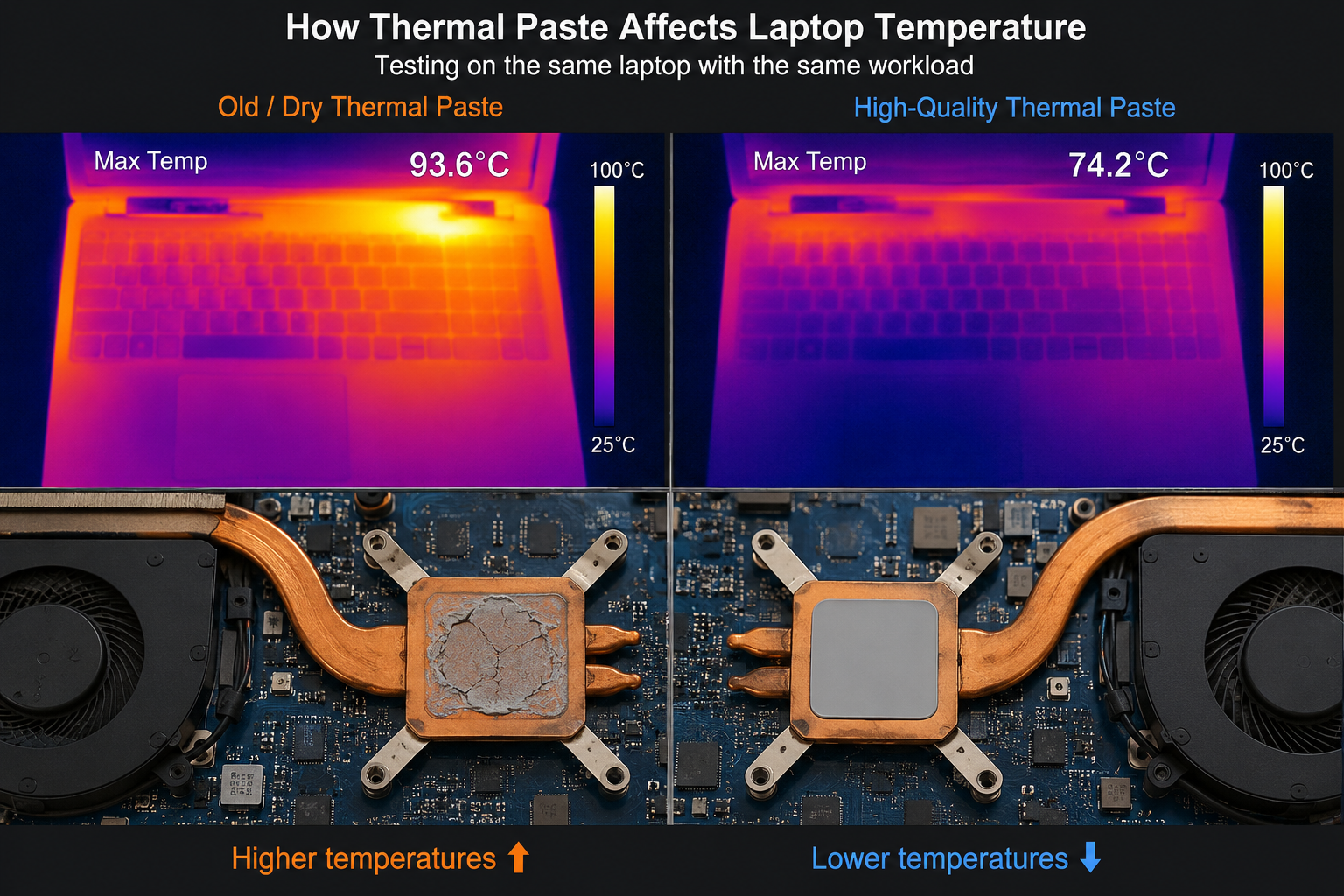
Thermal paste is a special material placed between the processor chip and the metal heatsink. Its only job is to fill tiny invisible gaps so heat can move quickly from the chip to the cooling system. Thermal paste does not actively cool anything, but it simply improves the connection so heat can transfer better from the hot chip to the cooling parts. Over time, thermal paste can dry up, get pushed out, crack or become less effective. When this happens, heat cannot move away from the chip efficiently, causing the laptop to run hotter. Thermal paste can cause overheating if it is applied incorrectly during manufacturing or repair.
Using too much or too little paste, spreading it unevenly or not having good contact between the heatsink and chip can all reduce cooling efficiency. Sometimes the problem is not the paste itself, but how firmly the heatsink is pressed against the processor. Poor contact between these parts reduces heat transfer significantly.
Take a look at what thermal paste problems look like:
- The laptop gradually gets hotter during normal use, even if your tasks haven’t become more demanding.
- Cooling fans start spinning loudly and frequently judder earlier than normal conditions.
- The laptop slows down when running demanding programs after a few minutes of use.
- The keyboard or the bottom of the laptop (CPU/GPU) feels unnaturally warm or hot.
- The laptop may shut down when overheating reaches its peak.
How Do Fans Work In Laptops?
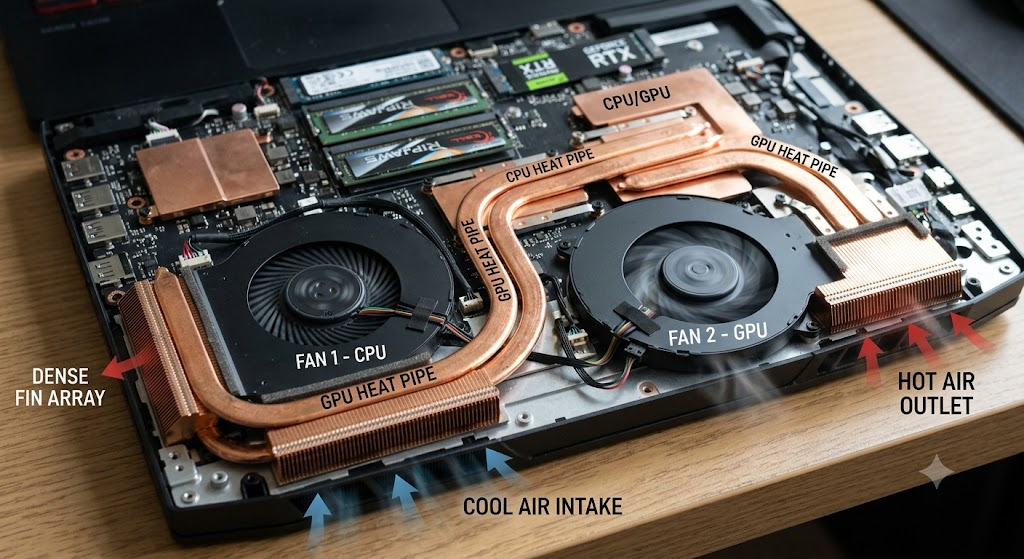
Fans are the moving parts that actively push hot air out of the laptop. They can start to malfunction or stop working at any time. Dust collecting on the fan blades or in the exhaust area blocks airflow significantly. Worn bearings can cause strange noises or uneven spinning. The weka motor might still spin, but not move enough air to cool the laptop properly. Just because a fan is loud and spinning fast doesn’t mean it is effectively cooling the laptop.
Noise can actually be a sign that the fan is struggling. It is important to understand that fan issues and heatsink problems are not the same thing. They can cause similar overheating symptoms but need different solutions. In many cases, the fan itself is still spinning, but the metal heatsink is blocked with dust. This blockage stops hot air from escaping almost as badly as if the fan had stopped completely. When the heatsink is clogged, the fan usually works harder and sounds louder as it tries to compensate. However, the air still cannot flow correctly, so cooling still does not work properly.
Signs of fan trouble include:
- Unusual sound like clicking, grinding, or rattling from the fan (mechanical problem)
Fan speed keeps jumping up and down unpredictably (shows control issues) - Fan can be slow to stop working entirely (stops responding to heat)
- Fanis is running at maximum speed constantly, yep, the laptop still overheats
- The laptop starts overheating again quickly after you cleaned it (shows poor reassembly)
Airflow Restrictions
Good airflow is essential because laptops must continuously pull in cool air and push out hot air to stay at safe temperatures. Any blockages in this process make cooling much less effective. When the bottom intake vents are covered by blankets, your lap, soft surfaces, dust or bad placement on a desk, the laptop cannot get enough cool air. Because of this, the internal temperature starts to climb slowly.
A strong and healthy fan is useless if it has no clean air to pull in. The entire cooling system fails without proper air flow, no matter how good the fan is. Many people think buying a cooling pad will solve overheating, but it usually helps less than expected. Simply lifting the laptop slightly (passive elevation) usually improves airflow more reliably for many models. This works well in many laptops because they draw air normally from vents on the bottom. Raising the laptop a little allows much better access to cooler room air.
Here are some airflow problems in laptops:
- Dust buildups around the bottom air intake vents block fresh air from entering the laptop.
- Placing the laptop on soft surfaces like beds, pillows, or couches blocks the bottom vents very effectively.
- When the hot air exhaust vents are too close to a wall or other object, the hot air cannot escape properly and gets pushed back into the laptop.
- If the room itself is already hot, the laptop has cool air available to use.
- Thick dust can build up inside the heatsink fins, blocking airflow even if the outside vents look fine.
How Do Heat Pipes And Heatsinks Work
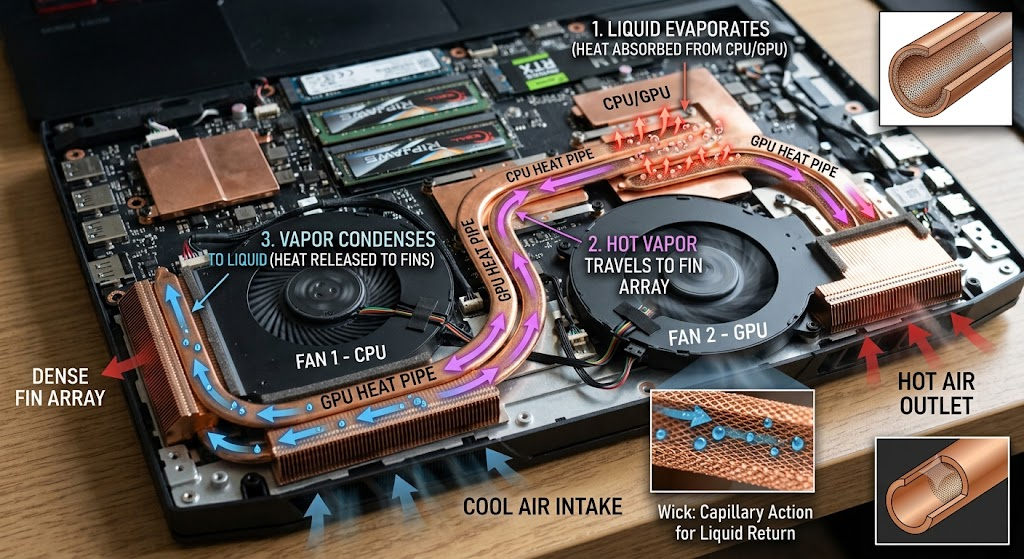
Heat pipes are thin tubes inside laptops that periodically move the heat away from hot components. They act like an internal transportation system for heat. Heat pipes carry heat from the processor (CPU or GPU) to a bigger cooling area called the heatsink. This allows the fan to push the heat out of the laptop more effectively. When a heat pipe loses good contact, gets damaged, or stops transferring heat well, the laptop can overheat badly. This can happen even if the fans are still spinning normally.
The heatsink (metal part with many fins) can also cause overheating issues on its own. It is not always the fan or paste that fails. If dust clogs are thin fins of the heatsink, it works like a blocked radiator. Hot air is trapped inside and cannot escape easily. Many laptops use one shared cooling system for both the CPU and GPU. A problem in any part of this shared system can cause issues for both processors. This is why problems that seem to be only CPU overheating may actually be caused by issues in the shared cooling path that also serves the GPU.
Some deeper heat pipe and heatsink issues include:
- Poor contact between the pipe and the chip plate makes it difficult for heat transfer.
- Certain areas of the laptop get very hot while the fan still sounds okay. When one side of the heatsink is hotter than the other, it usually means heat is not being distributed evenly.
- In older laptops with heavy usage, the hardware pipes themselves can slowly degrade and lose efficiency over time.
Other Issues
It is not necessary that your laptop overheating is happening because of physical parts like thermal paste, fans or dust buildups only. Many cases have either root causes that are easy to miss. Background programs running in the background, malware, outdated or conflicting drivers, incorrect power settings, and problems with the BIOS or firmware can all make the processor function much more roughly and generate more heat.
In some cases, cooling hardware is working just fine, but the laptop still overheats because it is demanding too much work, and software settings are not optimised.
A skilled technician always examines the booth’s hardware and software before deciding on what works best for you.
Repair And Maintenance
If the mail issue is dust buildup blocking vents and fans, a thorough cleaning is often all that is needed. This is the simplest and cheapest fix for many overheating laptops. You should replace the thermal paste when the old paste has dried out or was poorly applied from the start. A new fan is necessary when the motor is weak or the blades are damaged.
Typical repair and maintenance include:
- Internal cleaning and dust removal
- Thermal paste replacement
- Fan replacement
- Heatsink reseating or replacement
- Thermal pad inspection for surrounding components
- Full hardware diagnosis if the issue keeps returning.
How Mobile Computer Repair Helps You in Fixing Overheating Problems?
Mobile Computer Repair offers complete help for laptop overheating issues. We handle everything from diagnosing the cause to performing cleaning, replacing thermal paste, fixing fan issues or providing general laptop repairs. And the best part is that we do all that at your own place. Yes, we offer on-site repair and maintenance services for laptops and computers. And this is not it. Our portfolio spans a number of IT services from laptop repair services to business IT support, virus removal, data recovery and much more.
Contact our team for mobile computer repair services at the comfort of your home and get your devices fixed without any hassles.
Frequently Asked Questions (FAQs)
Q.1. Can overheating permanently affect a laptop?
Yes, repeated heating can reduce the lifespan of certain parts of the laptop, like the battery, fans, and motherboard elements.
Q.2. Can a laptop overheat even if there is no problem with its fan?
Yes, because a functioning fan is not always a sign of adequate airflow, clean heatsink fins, and proper application of thermal paste.
Q.3. Do cooling pads actually work?
Sometimes, but most likely not as well as you think, because sometimes passive elevations provide better airflow than cooling pads with fans.
Q.4. How long does laptop thermal paste last?
There is a common belief that laptop thermal paste lasts about 3 to 4 years, but in practice, it might depend on different factors.
Q.5. Why does my laptop overheat quickly after playing games?
It happens when your laptop faces constant load, which reveals a cooling bottleneck like paste deterioration, dust accumulation, or an inefficient cooling system.
Q.6. Can overheating lead to the loss of data?
Indirectly, because it will lead to an unexpected shutdown of a laptop during file processing.
Q.7. Why does my laptop overheat even if I perform low-load activities?
Background applications, poor airflow, and insufficient cooling systems keep your laptop hot all the time.