
Few things cause more stress than pressing your laptop’s power button and seeing nothing happen. A laptop that won’t boot or power on can make you think the device is completely dead. If that happens, you might be searching for laptop won’t turn on fixes to get it working again.
The good news is that many laptop power issues have simple fixes you can try before scheduling professional repair. In this guide, we’ll walk through practical troubleshooting steps that help Los Angeles laptop users determine whether the problem is minor or something that needs expert attention.
1. Check the Power Source First
Before assuming the laptop itself is broken, start with the most common cause: power problems. If your laptop won’t turn on, there are several possible fixes you can try first.
Many “dead laptop” situations occur because the device simply isn’t receiving power.
Check the following:
-
Make sure the power adapter is firmly plugged in
-
Test a different wall outlet
-
Look for charging indicator lights
-
Inspect the charger for frayed cables or damage
If your laptop powers on only when plugged in, the issue may be a battery failure rather than a full hardware problem.
2. Perform a Hard Reset
Sometimes laptops freeze at a hardware level and refuse to boot.
A hard reset can clear residual electrical charge and restore normal operation.
Steps:
-
Disconnect the charger
-
Remove the battery (if removable)
-
Hold the power button for 15–20 seconds
-
Reconnect power and try starting the laptop again
This simple reset often fixes systems that appear completely unresponsive.
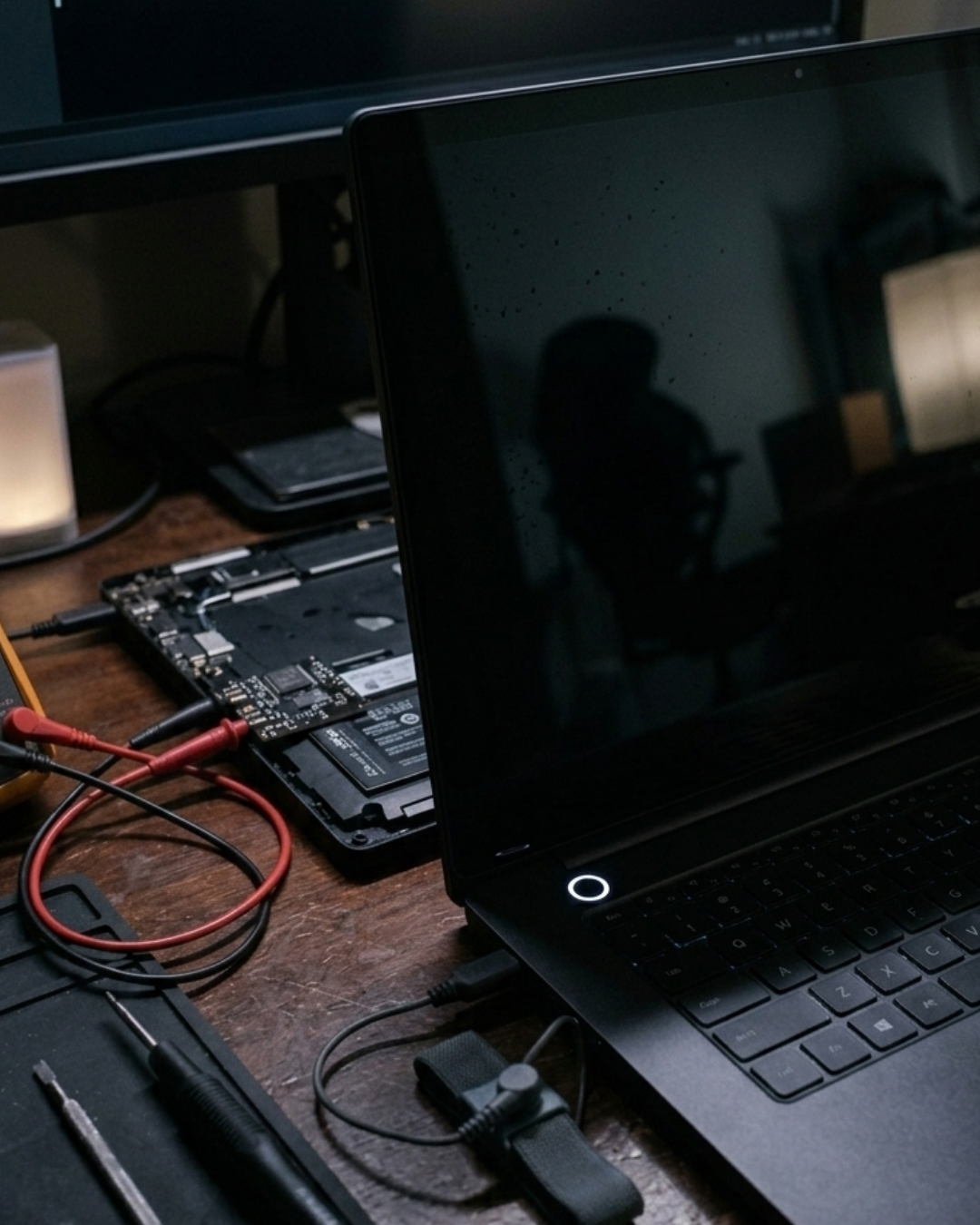
3. Look for Signs of Life
Even when the screen stays black, the laptop might still be turning on.
Check for:
-
Keyboard lights
-
Fan noise
-
Hard drive activity
-
Charging LED indicators
If lights or fans appear but the screen remains dark, the issue may involve the display or graphics system, not the power supply.
4. Check the Display Brightness or External Monitor
Sometimes the laptop is actually running but the screen is too dim or not displaying correctly.
Try the following:
-
Increase brightness using the keyboard controls
-
Connect an external monitor
-
Restart while connected to another display
If an external monitor works, the problem may be a faulty laptop screen or cable.
5. Disconnect External Devices
External accessories can occasionally interfere with startup.
Disconnect everything except the charger:
-
USB drives
-
External keyboards
-
Docking stations
-
Printers
-
HDMI cables
After removing these devices, try powering on the laptop again.
6. Check for Overheating Issues
Laptops that overheat may refuse to start as a safety measure.
If the device recently shut down unexpectedly:
-
Allow it to cool down for 20–30 minutes
-
Ensure vents are not blocked by dust
-
Try powering it on again
Persistent overheating may indicate a cooling system problem or internal dust buildup.
7. When Your Laptop Still Won’t Boot
If the laptop shows no power at all, the issue could involve:
-
A failed motherboard
-
Damaged charging port
-
Faulty power adapter
-
Dead battery
-
Internal hardware failure
Diagnosing these issues often requires professional tools and experience.
Professional Laptop Repair in Los Angeles
If your laptop won’t turn on after trying the steps above, it may be time for professional diagnosis.
Our technicians provide fast laptop repair services in Los Angeles, helping businesses and home users recover from power failures, boot issues, and hardware damage.
We can quickly identify whether the problem involves the battery, motherboard, charging port, or internal components.
Learn more about our
➡ Laptop repair solutions on our Mobile Computer Repair service pages.
Final Thoughts
A laptop that won’t power on doesn’t always mean the device is beyond repair. In many cases, simple troubleshooting—such as checking the power supply or performing a hard reset—can restore normal operation.
However, if the system remains unresponsive, professional repair can help diagnose deeper hardware issues before they lead to permanent data loss.