Knowing how computer memory is measured helps you buy the right laptop, understand error messages and work out why a brand-new drive seems smaller than the box said. Every number you see, from 16 GB of RAM to a 1 TB hard drive, uses the same small set of units. This guide explains them in plain English, shows how they relate to each other, and answers the questions customers ask us most often.
The basics: bits and bytes
Everything a computer stores is made of bits. A bit is the smallest unit of data and can only be a 0 or a 1. On its own, a single bit can’t hold much, so computers group them together.
Eight bits make one byte. A byte is enough to store one simple character, such as the letter “A”. When people talk about how computer memory is measured, they almost always mean bytes and the larger units built from them.
Watch the letter case: a lowercase b means bits and an uppercase B means bytes. Internet speeds are usually given in bits per second (Mbps), while file sizes are given in bytes (MB). That’s why a 100 Mbps connection downloads about 12.5 MB per second, not 100.
How computer memory is measured: 7 units made easy
Here are the units you’ll meet most often, from smallest to largest:
| Unit | Short form | Roughly equal to | What it can hold (example) |
|---|---|---|---|
| Bit | b | A single 0 or 1 | A yes/no answer |
| Byte | B | 8 bits | One letter of text |
| Kilobyte | KB | 1,000 bytes | A short plain-text email |
| Megabyte | MB | 1,000 KB | A phone photo is a few MB |
| Gigabyte | GB | 1,000 MB | A movie download is often a few GB |
| Terabyte | TB | 1,000 GB | Hundreds of thousands of photos |
| Petabyte | PB | 1,000 TB | Used by large data centers |
The examples are rough, because file sizes vary a lot with quality and format. The important thing is the ladder: each step up is about a thousand times bigger than the one before.
1,000 or 1,024? Why there are two ways to count
This is the part that confuses most people. Computers work in binary, so memory naturally comes in powers of 2. In binary, one “kilo” is 1,024 rather than 1,000. Over the years, both ways of counting ended up using the same names.
- Decimal (base 10): 1 KB = 1,000 bytes, 1 GB = 1,000,000,000 bytes. Drive makers use this.
- Binary (base 2): 1 KiB (kibibyte) = 1,024 bytes, 1 GiB (gibibyte) = 1,073,741,824 bytes. Memory (RAM) and Windows use this.
The official names for the binary units are KiB, MiB, GiB and TiB, defined by the International Electrotechnical Commission. The U.S. National Institute of Standards and Technology has a short page on these prefixes for binary multiples. In everyday life, though, most software still writes “GB” for both.
Why does my 1 TB drive show only 931 GB?
A 1 TB drive really does hold 1,000,000,000,000 bytes. Windows divides that by 1,073,741,824 (one binary gigabyte) and shows the answer, about 931, with the label “GB”. Nothing is missing: it’s the same amount of space counted in a different unit.
A little more space is also used by the file system and by recovery or system partitions, so the free space on a new computer is lower again. On a Mac, macOS has used decimal units since 2009, so a 1 TB drive shows as about 1 TB.
Memory (RAM) vs storage: not the same thing
People often say “memory” for two different parts of a computer:
- RAM (memory): fast, short-term memory the computer uses while it’s running. It’s cleared when you switch off. More RAM lets you keep more programs and browser tabs open smoothly. Typical sizes are 8 GB, 16 GB or 32 GB.
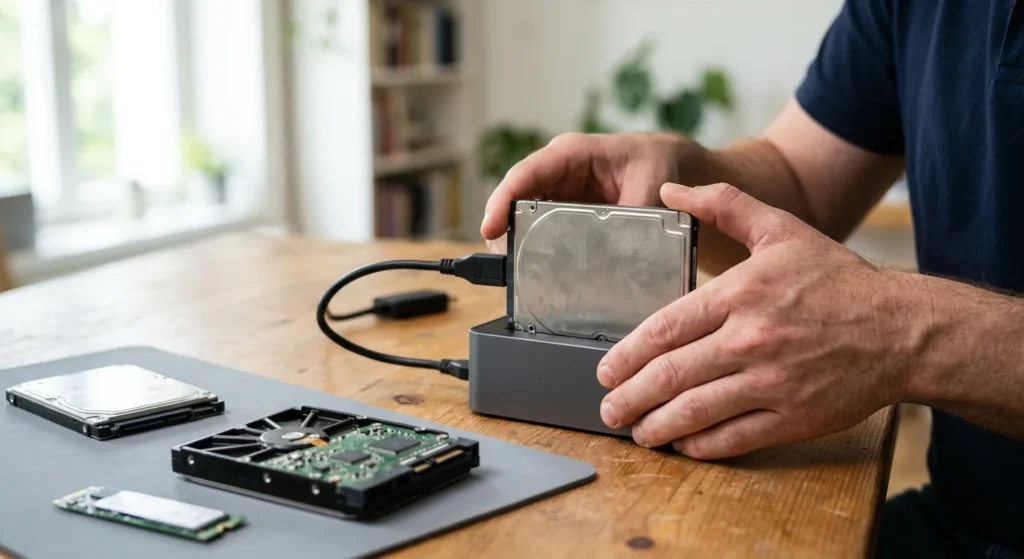
- Storage (SSD or hard drive): long-term space for Windows, your programs, photos and documents. It keeps everything when the power is off. Typical sizes are 256 GB, 512 GB, 1 TB or more.
Both follow the same rules for how computer memory is measured, but they do different jobs. A computer can have lots of storage and still feel slow if it doesn’t have enough RAM, and the other way round.
How much RAM do you need?
As a rough guide for a Windows computer:
- 8 GB: email, browsing and documents, with a few programs open.
- 16 GB: a comfortable amount for most home and office users today, including many browser tabs and video calls.
- 32 GB or more: video editing, large photo libraries, design software, virtual machines and demanding games.
Your exact needs depend on the programs you use. If your computer is slow when several programs are open, more RAM is often the most cost-effective upgrade, if your computer allows it.
What about memory speed?
RAM also has a speed, usually shown as a number after its type, such as DDR4-3200 or DDR5-5600. The number is the data rate in megatransfers per second (often written as MHz). Faster memory helps a little, but having enough memory matters far more for everyday use.
How to check your computer’s memory and storage
Now that you know how computer memory is measured, here’s how to see what your own computer has:
- RAM on Windows 10 and 11: open Settings, then System, then About, and look at Installed RAM. Task Manager’s Performance tab also shows memory size, speed and how many slots are used.
- Storage on Windows: open File Explorer and click This PC to see each drive’s size and free space.
- On a Mac: open the Apple menu, choose About This Mac, then check the memory and storage details.
Quick conversions
| Question | Answer |
|---|---|
| How many bits in a byte? | 8 |
| How many MB in a GB? | 1,000 (decimal) or 1,024 (binary) |
| How many GB in a TB? | 1,000 (decimal) or 1,024 (binary) |
| How big is a 1 TB drive in Windows? | About 931 GB |
| How fast is 100 Mbps in MB per second? | About 12.5 MB/s |
When to call a technician
If you’re not sure what the numbers on your computer mean after reading how computer memory is measured, or your computer is running out of space, slowing down when several programs are open, or showing memory errors, a technician can check whether you need more RAM, a larger drive or a faster SSD, and whether your computer can be upgraded at all. Upgrading is often much cheaper than replacing the whole computer.
Mobile Computer Repair comes to your home or office across Los Angeles, the San Fernando Valley and Thousand Oaks. See our Computer Repair service or contact us, and call 818-704-7588 for a free diagnosis and an honest price.
Frequently asked questions
How is computer memory measured?
In short, here’s how computer memory is measured: in bytes, where one byte is 8 bits. Larger amounts use kilobytes (KB), megabytes (MB), gigabytes (GB) and terabytes (TB), each about 1,000 times bigger than the last. RAM is usually measured in gigabytes and storage in gigabytes or terabytes.
Is 1 GB 1,000 MB or 1,024 MB?
Both are used. Drive makers count 1 GB as 1,000 MB. Windows and RAM sizes use 1,024, which is officially called a gibibyte (GiB).
Why is my new computer’s free space smaller than advertised?
Part of the difference is the 1,000 versus 1,024 counting explained above. The rest is taken up by Windows or macOS, pre-installed programs and recovery partitions.
Is RAM the same as storage?
No. RAM is short-term working memory that’s cleared when you switch off. Storage is the SSD or hard drive that keeps your files permanently. Both are measured in the same units.
What’s bigger, a terabyte or a gigabyte?
A terabyte. One terabyte is about 1,000 gigabytes.